
|
 |
|
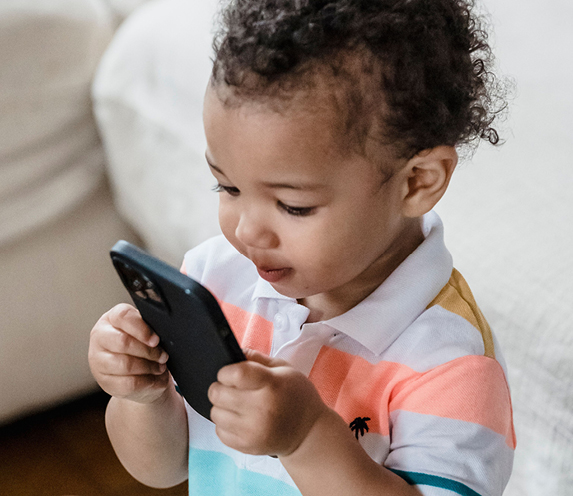 Question: How can I keep my child from accidentally buying things in games or apps?
Answer: Those little "buy now" buttons can lead to very real charges. The good news is you can add a few safeguards to your phone or tablet, so purchases require your approval. On an iPhone or iPad, go to Settings, then Screen Time. Tap Content & Privacy Restrictions and turn it on. Next, tap iTunes & App Store Purchases. You can choose "Don't Allow" for In-app Purchases or set purchases to always require a password. If you use Family Sharing, you can also turn on Ask to Buy. Your child sends a request, and you decide whether to approve it. On an Android device, open the Google Play Store app. Tap your profile picture, then Settings, Family, and Parental controls. You can set up a PIN and control which apps, games, and content can be downloaded. Also look for Purchase verification in the Play Store settings. Set it to require verification for every purchase, not just occasional ones. It's smart to check any games your child already plays, too. Some offer subscriptions, virtual coins, or special items that renew automatically. Review your purchase history once in a while and talk with your child about asking first. A quick conversation now can help prevent an unwelcome surprise on your next bill.
Trademarks: All brand names and product names used in this eNewsletter are trade names, service marks, trademarks or registered trademarks of their respective owners. Privacy Policy |
