
|
 |
|
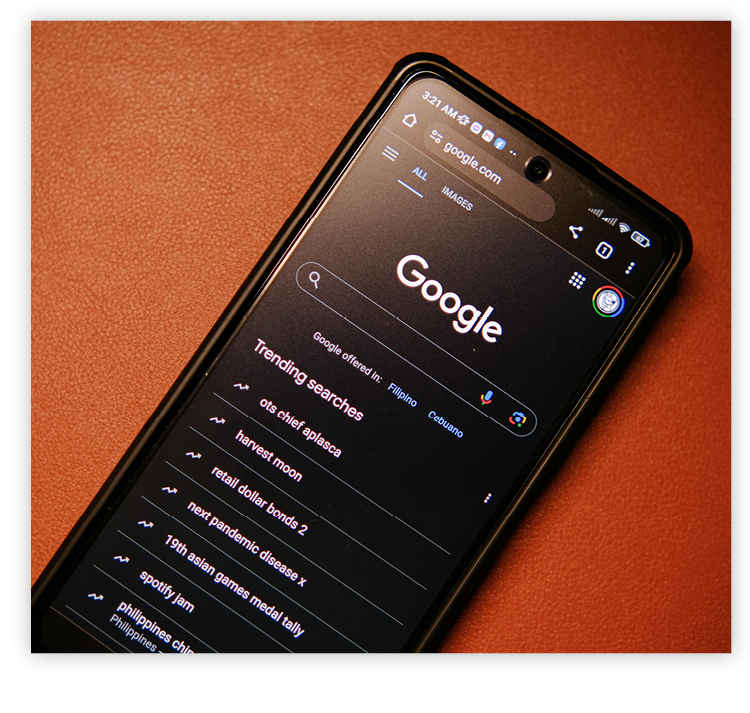 Question: I've been told it's a good idea to clear my cache from time to time. How do I do that?
Answer: Clearing your cache removes stored website data (images, scripts) to resolve loading/formatting errors, fix outdated content, boost browser speed, and free up storage space. It acts as a "digital declutter" that forces browsers to load the newest, uncorrupted version of sites, improving performance and privacy. To clear your cache, use the Ctrl+Shift+Delete shortcut in most desktop browsers, or navigate to settings and select "Clear browsing data" under privacy options. For Android, go to Settings > Apps, choose the app, and tap "Clear cache." iPhone users can clear Safari cache via Settings > Safari > Clear History and Website Data. Desktop Browser Instructions
Trademarks: All brand names and product names used in this eNewsletter are trade names, service marks, trademarks or registered trademarks of their respective owners. Privacy Policy |
